How to use Google Business Profile – 2026 Guide
Google Business Profile (formerly Google My Business) is a free tool that organisations can use to increase their visibility online and in Google search results. To qualify for a Google Business Profile, you need to be either a bricks-and-mortar company (like a venue or a gallery), or a service company operating in a particular geographical area (like a touring company). This service is not really suitable for organisations and individuals with a purely online presence.
Although there are many other ways to get your business to show up on Google’s first results page during a search, a Google Business Profile should be considered as an effective part of a marketing plan. It gives you some control over what information is shared on Google about your business, a medium to interact with current and potential customers, and a proven system for optimising your reputation online.
This article is a best practice guide for creative and cultural organisations who want to manage and optimise their Google Business Profile.
What is Google Business Profile?
Google Business Profile is a free product that allows organisations and businesses to display important information online. This includes basics like opening hours, reviews and contact details, but it will also list their location within Google Maps and Google search results. Through verifying and personalising a Google Business Profile, organisations can make it easier for audiences and customers to find them and grow their online visibility. You can learn more about this topic in greater depth later in this article.
Notable stats (updated for 2026):
- There are over 189,815 searches per second on Google (source: SQmagazine)
- 46% of all Google searches are looking for local information (source: Loop Digital)
- “Near me” searches have exploded by 900% in the last two years (source: Loop Digital)
- Businesses in Google’s top three local pack positions receive 126% more traffic and 93% more user actions like calls and directions (source: Loop Digital)
- Complete and verified profiles are 80% more likely to appear in searches (source: Starfish Reviews)
- Verified profiles with complete data receive 4 times as many website visits, 12% more calls, and 10% more direction requests (source: Starfish Reviews)
- Verified businesses with more than 15 photos receive more interactions (source: Starfish Reviews)
- One new Google review results in 80 additional website visits, 63 direction requests, and 16 calls (source: Starfish Reviews)
What makes a good Google Business Profile?
When people search for your brand, your website should come up at the top of Google search results. However, searchers still need to click on the link to visit your website.
When your Google Business Profile listing is set up correctly, it will show as a content-rich panel on the right-hand side of the main results. This allows you to quickly showcase what matters most about your brand: a short description, photos, address, opening hours, reviews, and more.
This information will also show when users search for localised results in Google Maps – both on the desktop and the mobile app.
Provide essential information at a glance
When filling in your Google Business Profile, add as much information and media as you can and keep this information up to date. Consider the areas you serve, hours in which you operate, and other attributes such as “free Wi-Fi” and “wheelchair accessible”. As anyone can ‘suggest an edit’ to your listing, we recommend getting everything right the first time.
Also, Google now offers additional attributes to showcase your business values, including sustainability attributes like “carbon-neutral” and “recyclable packaging”, as well as diversity and inclusion indicators such as “Women-led”, “Black-owned”, and “LGBTQ+-friendly”. Availability of specific attributes may vary by business category and region.
These attributes can help attract customers who prioritise supporting businesses aligned with their values.
Where possible and natural, use the keywords you want to be visible for within your business description. This will increase the likelihood of your business being visible for these terms in Google Search results (this is also known as improving Search Engine Optimisation). The business description limit is 750 characters, though Google typically displays only the first portion before a ‘Read more’ link. Focus on what makes your business special and unique, putting the most important information first.
Communicate value and promote your offering
Google Business Profile allows you to do more than just display opening hours.
Posting images of the outside of your venue will make it easier for visitors to find the address once they are close by. On the other hand, images of the inside of your venue – ideally not of an empty space but during a successful event – will give them some idea of what to expect.
To promote events, you can post those on Google Business Profile, using the “updates” feature. Make sure to include images for greater visibility and impact. Also, posting images of leaflets and posters of past events (in the photos section) will give users a better understanding of the kind of events you host.
Connect your social media profiles
You can connect your social media profiles to your Google Business Profile, making it easier for audiences to find and follow you across platforms. For cultural organisations, this integration is particularly valuable – visitors who discover your museum exhibition or theatre production on Google can quickly connect with your Instagram to see behind-the-scenes content, or follow your Twitter/X account for programme announcements and artist interviews. This creates a seamless audience journey from initial discovery to deeper engagement with your organisation.
Keep your posts fresh
Posts older than 6 months are archived by Google unless a date range is set. For cultural organisations with seasonal programming or rotating exhibitions, this means you should maintain a regular posting schedule to ensure your current offerings remain visible to potential visitors.
To schedule your posts, you can use third-party scheduling tools like Buffer, Hootsuite, or similar platforms to plan marketing campaigns for exhibitions or events weeks or months in advance.
Direct booking and reservations
Google allows users to book events directly from a Google Business Profile with Google Reserve. The same applies to bars or restaurants in a venue. Using Google Reserve, people can now book a table directly, without having to go to the website. However, for this option to be available, the restaurant must have a separate Google Business Profile, and the feature depends on supported booking providers operating in your area.
Some businesses can also enable messaging features, allowing potential visitors to contact you directly. Check your profile settings to see which communication options are available for your business category.
Showcase your products
If you sell products through your museum shop or gallery, you can showcase them on your Google Business Profile by linking it to Google Merchant Centre. This integration allows you to display your inventory directly in Google search results, showing customers what’s available before they visit. For organisations using modern Point-of-Sale systems like Square, Clover, or Lightspeed, the integration can be automated to keep your inventory updated in real-time without manual uploads.
To set this up, you’ll need to link your verified Google Business Profile to your Google Merchant Centre account and assign a unique “Store Code” to your location. This code connects your physical venue to your online inventory, ensuring customers can see what’s in stock at your specific location.
Upload videos and post updates
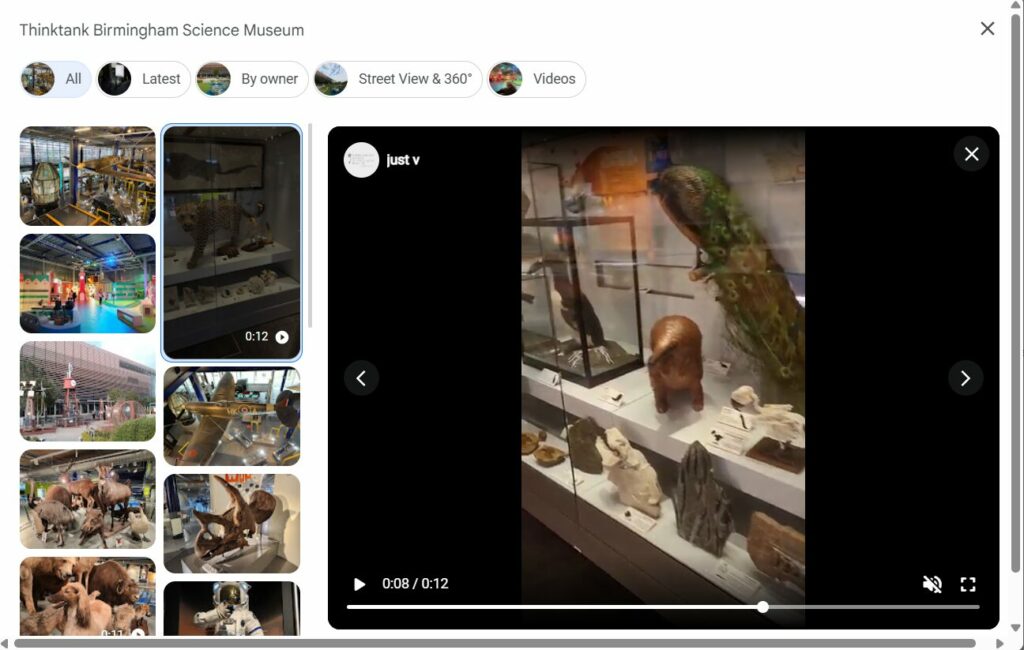
Uploading videos allows businesses to promote themselves in an engaging and often accessible format. Videos show up within search results and help you raise awareness, stand out and communicate with potential customers in a more personal way.
Make sure your videos meet the following requirements:
- Duration: Up to 30 seconds long
- File size: Up to 75 MB
- Resolution: 720 pixels or higher
With Google’s increasing focus on visual search through Google Lens, high-quality videos and images have become even more important. Google Lens allows users to search by taking photos or using images, so clear, well-lit videos of your venue, events, or products can help potential visitors discover your organisation when they use visual search. Consider filming recognisable aspects of your building, distinctive artwork, or unique features that visitors might photograph.
Build trust with potential customers by showcasing reviews and ratings
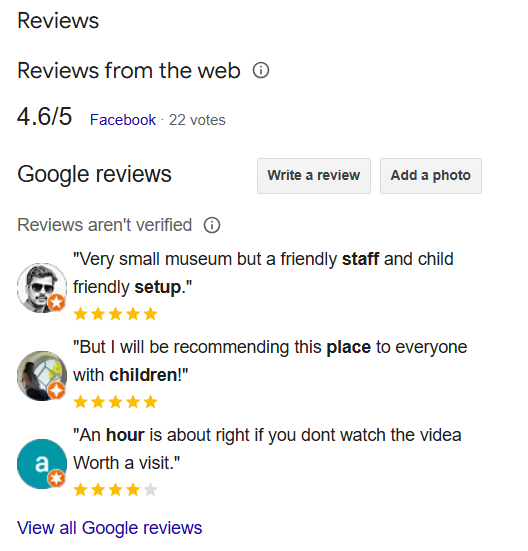
If you have ever seen the Google Business Profile of a business, you will know that reviews play a very important role in deciding whether to use their services. Research shows that the majority of consumers read online reviews for local businesses, with many reading multiple reviews before feeling confident in making a decision.
Google Business Profile allows you to generate a link that you can share with your customers, allowing them to easily post a review. To generate the link, you need to go to your account, select Customers, then Reviews and then Get More Reviews.
Here is an interesting article from Wordstream about strategies to get high numbers of Google reviews. Among other things, it suggests that you copy your Google Business Profile reviews onto your website for additional social proof for your website visitors. You can do it manually, or there are platforms and plug-ins that allow you to automate the process.
One of the reasons that Google reviews are trusted is that they cannot be edited or filtered by the business. Of course, as a business you want your customer experience to be positive and result in great reviews. But before you start fretting about the odd difficult-to-please customer, you might find it reassuring that web users find less-than perfect review scores more trustworthy than the perfect 5.0.
When a client leaves a review – good or bad – they make an effort to engage with your business, offering praise or providing feedback. This is why it is important for you to acknowledge and respond to reviews, either thanking your reviewers or addressing any shortcomings. It’s good practice to respond promptly, as timely responses are generally perceived as a sign of good customer service. Research suggests that businesses that respond to reviews are considered more trustworthy than those that don’t.
Respond to questions (and even post some of your own)
Google Business Profiles also include a section that allows people to post questions about your business. Make sure to reply to those in a timely manner.
Google is increasingly using AI to assist with various features, including the potential to suggest answers to customer questions based on information from your website and existing reviews. While such automation may be helpful, it’s still important to monitor your Q&A section and provide direct, accurate answers to ensure the information is complete and reflects your current offerings.
You can also use this section to provide answers to questions that you know are likely to be asked (for example, because they’ve been submitted through another channel). Just ask your friends and family to go to your profile and type in the questions. This only works for questions that genuinely come from your visitors/customers and should not be used as a platform for marketing.
Here are some examples of questions that can be put in the Ask a Question section of Google Business Profile for a theatre:
- What is the seating capacity of your theatre?
- Do you offer any discounts for students or seniors?
- What is the dress code for attending a show?
- Are food and drinks allowed inside the theatre?
- What time should I arrive before a show?
- Can I exchange or refund my ticket if I can’t attend the show?
Keep customers informed with timely updates
Create posts to share information and updates. These posts are visible through the ‘Updates’ or ‘Overview’ tabs of the Business Profile on mobiles, and the ‘From the Owner’ section of the Business Profile on your computer on Search and Maps. Posts on Google Business Profile can hold tremendous value for organisations with the ability to advertise your brand, products, sales, specials, news, events and offers – for free.
When adding booking or ticketing links, ensure they lead to accessible, fast-loading landing pages. Avoid sending users to pages that immediately present barriers to access, as this can create a poor user experience.
How Google Business Profile boosts your visibility in AI Overviews
What’s new with AI search?
Google now shows AI-generated summaries at the top of many search results. These “AI Overviews” often pull information directly from Google Business Profiles when people search for local businesses or services. This means your profile information can appear in these prominent AI answers without users needing to click through to your website.
For brand searches on their own, AI Overviews don’t tend to appear. However, conversational queries, for example ” is British Motor Museum dog-friendly” do tend to result in an AI Overview, with standard results and Google Business Profile below.
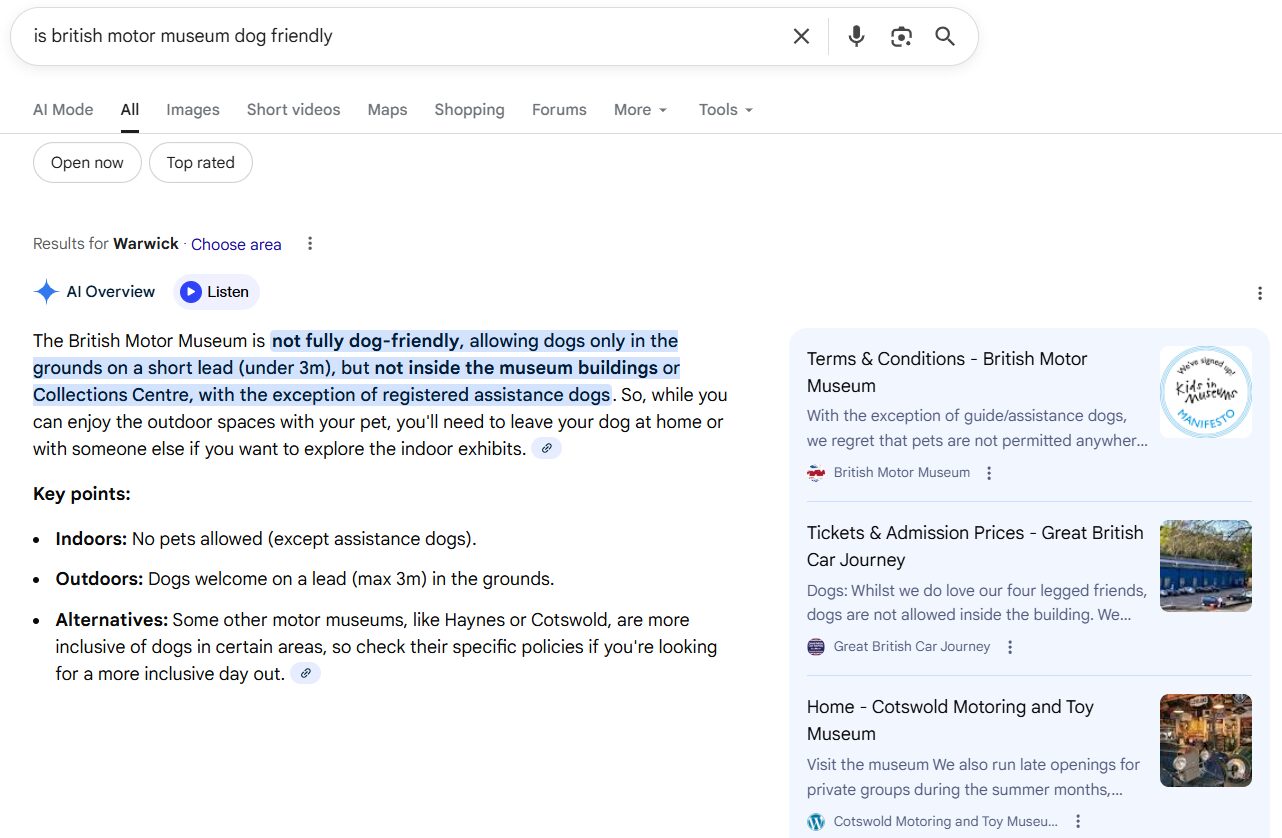
Why this matters
These AI summaries can take up almost half the screen, making them the first thing people see. If your business isn’t included in these summaries, you might be overlooked entirely. For example, when someone searches “family-friendly museums in Brighton,” venues with complete profiles mentioning accessibility features and children’s activities are more likely to appear in the AI Overview.
Google is increasingly using AI to surface themes and information from reviews and other profile data. These may appear as quick facts or summary information on your profile. While you can’t directly control these AI-generated elements, they’re based on your actual features and customer feedback, so maintaining accurate profile information and encouraging detailed reviews helps ensure they accurately represent your venue.
Even with all these new AI features, your Google Business Profile is still essential for making your brand visible in search results.
Making your profile work with AI
To increase your chances of appearing in AI-generated results:
- Fill in every section of your profile with accurate details
- Make sure your business information is the same across all your online platforms
- Keep adding new photos and posts regularly
- Respond to reviews promptly
- Stick to your real business name without adding keywords or locations
Google’s AI tends to favour businesses with complete and accurate profiles. By keeping your information up to date, you’re giving yourself the best chance to appear in these new AI search features.
How to create a new Google Business Profile listing
Before creating your new listing, it’s important to prepare properly. Google’s verification process has become more stringent, so getting everything right from the start will save you time and frustration later.
Pre-creation checklist
Before you begin, make sure you have:
- A live website with your business address in the footer
- An email address that matches your domain (for example, [email protected] rather than a generic Gmail address)
- An active phone number that can accept calls – avoid numbers that go straight to voicemail
- Your business name exactly as it appears on your signage and logo
- High-quality photos of your venue, both exterior and interior
Having these elements in place before you create your listing will significantly improve your chances of smooth verification.
Important considerations
Before creating your new listing, consider the following:
- Opening date: Google Business Profile listings can only be created for locations officially open for business.
- Website: the information on your website should match the information you plan to add to your listing.
- Duplication: it’s very easy to accidentally create multiple listings for the same location. To avoid this, check your Google account first, as it should be flagged. If a duplicate listing is created on your account, it may prevent the original listing from appearing.
- Listing owned by someone else: in cases such as when businesses or locations are bought or sold there may already be an existing business listing. To check this, search for the listing in the live search results and test multiple variations of location/listing name. If you find an existing listing for your location, an ownership request may be required.
Once you have confirmed there are no issues with the above, you can go to the Google Business Profile starting page and begin creating your profile. If your profile is already in existence, you can claim it through the same process.
How to verify your Google Business Profile listing
Failing to verify your business listing damages Google’s confidence in your location and status as a legitimate business. It reduces your visibility in search and increases the likelihood of other businesses showing up in search for your brand name. The verification process has become significantly stricter in recent years.
Understanding verification methods
Google determines which verification methods are available to you based on various factors including your business type, how much information Google already has about your business, and your business category. You cannot choose your verification method – Google assigns it automatically.
Important: Video verification has become a common method for many new listings. It’s best to prepare for it from the start, even if you’re initially offered another method.
The available verification methods may include:
- Video verification (recorded upload)
- Live video call with Google support
- Phone verification
- Email verification
- Instant verification (for businesses already verified in Google Search Console)
Video verification (recorded upload)
This process requires you to record and upload a video through your Business Profile that proves your business exists and that you manage it.
Your video must be:
- At least 30 seconds long
- Recorded and uploaded directly through your Business Profile (you cannot record offline and upload later)
- An unedited, unique, and complete recording with no breaks
- Clear and well-lit
What NOT to include:
- Sensitive information like bank account, tax, or ID numbers
- Private information about you or others
- Other people’s faces
Preparing for video verification
The key to getting verified without a glitch is preparation. Before you start recording, plan what you’re going to show.
For venues with a physical location that audiences visit:
- Make sure your signage is clean and clearly visible
- Have keys ready if you need to demonstrate access to staff-only areas
- Prepare any business documents you might want to show (business license, utility bill, lease agreement)
For touring companies or organisations without a fixed public location:
- Prepare branded materials (promotional posters, equipment with your logo, branded uniforms or t-shirts)
- Have invoices or marketing materials ready that show your business name
- If you have a vehicle, make sure any company branding is visible
What to show in your video
For venues with a physical location:
- Show your location: Film the exterior, street signs, building number, and context of where your venue is situated
- Show your signage: Film your venue’s exterior signage clearly. The name must match exactly what’s on your Google Business Profile
- Demonstrate proof of management: Show yourself unlocking the front door (this is important), film staff-only areas, show your point-of-sale system or box office, include any business licenses displayed on your walls
For example: a community theatre might film: the exterior with the theatre name on the building, street signs showing the location, unlocking the front door, the box office area, backstage access, and stored props or costumes with the theatre’s branding.
For touring companies:
- Film at a performance or workshop location with street signs visible
- Show branded equipment (sound cases with your logo, costume racks with labels)
- Show invoices, booking confirmations, or marketing materials with your business name
- If you have a company vehicle, film the exterior showing branding, then unlock it
- Show business documents like permits, insurance certificates, or signed venue contracts
Recording and submitting your video
When you’re ready:
- Sign in to your Google Business Profile
- Select ‘Get verified’ and choose video verification
- Follow the prompts to record your video directly through the interface
- Speak clearly throughout, explaining what you’re showing
- Review your video before submitting
- Submit your verification video
Google typically reviews video verifications within several business days. Check your email and Google Business Profile regularly for updates.
Important tips for success:
- The business name in your video must match your Google Business Profile exactly
- Include clear footage of you unlocking a door or accessing a restricted area
- Keep the camera steady and ensure good lighting throughout
- Don’t edit your video or add effects
If your video is rejected
If Google rejects your video verification, you’ll receive a notification. Common reasons for rejection include:
- The business name on your signage doesn’t match what’s on your profile
- The video doesn’t clearly show your location
- Insufficient proof of management
- Poor video quality or lighting
You can submit a new video addressing these issues. If you continue to experience difficulties, Google may direct you to submit additional documentation or schedule a live video call with their support team for guided verification.
Other verification methods
By phone or email: Some accounts may be eligible for phone or email verification, where you receive a code via text message or email to confirm your listing.
Instant verification: If your business is already verified within Google Search Console, you may not require any further steps. Simply sign into Google Business Profile with the same account used to verify your Search Console.
Live video call: If directed to a live video call, a Google support agent will guide you through the process in real-time, asking you to show the same elements you would in a recorded video.
After verification
Once your profile is verified, avoid making major changes immediately. Editing key details like your business name, address, or categories within the first two weeks after verification can trigger additional review.
It’s best to let your listing settle for at least two weeks before making any significant updates. You can add posts, photos, and respond to reviews during this time, but leave core business information unchanged.
Temporary closure warning
If your venue is temporarily closed and you’re setting up your profile in advance, do not use the “opening date” feature to indicate a future opening. Setting an opening date in the future will cause your listing and reviews to become invisible on Google Search and Google Maps. Instead, wait until you’re actually open before creating or claiming your listing.
How to close or remove a Google Business Profile listing
If you wish to close or delete a Google Business Profile listing, it’s important to understand that you cannot fully delete a Google Business Profile yourself. The options available depend on your situation, and each has different outcomes.
Understanding your options
Important: Removing a Google Business Profile from your account only removes your management access. The listing may still appear on Google Maps and Search without your control. Some business information (name, address) will continue to appear publicly even after you’ve removed your access.
Consider the following before proceeding:
- The closing date: a listing should only be closed once the location is officially closed for business.
- Temporary vs permanent closure: decide whether your closure is temporary (seasonal, renovation) or permanent.
- Impact on visibility: different closure types have different effects on how your listing appears.
Option 1: Mark as temporarily closed
This option is suitable for seasonal venues, organisations undergoing renovations, or any temporary closure lasting more than a week.
What happens:
- Your profile remains active on Search and Maps
- Customers see that you’re temporarily closed
- You can still receive new reviews
- All your existing information stays visible
Important warning: Do not use the “opening date” feature to indicate when you’ll reopen. If you set an opening date in the future, it will cause your listing and all your reviews to become invisible until that date. Simply mark as temporarily closed and update your status when you reopen.
Option 2: Mark as permanently closed
This option is for venues that have closed permanently and will not reopen.
What happens:
- Your profile remains visible on Search and Maps but with reduced visibility
- A red “Permanently Closed” marker appears on your listing
- Google purposely makes these listings difficult to find
- Users typically only find them by searching your exact business name
- Your reviews and basic information remain visible
- Reopening or reclaiming a permanently-closed listing can be difficult and isn’t guaranteed
Option 3: Remove business profile content and managers
This option removes your access and management capabilities but does not guarantee the listing will disappear from Google.
Important consequences:
- Any posts, photos, or videos you added will be permanently removed
- If you created a website through Google Business Profile, it will be permanently removed
- Removed profile content cannot be recovered or managed
- Only owners and primary owners can remove a Google Business Profile
- The listing may still appear on Maps and Search as an unverified profile
After completing this process, the listing may still appear on Google Maps, but as an unverified listing. In some cases, it may eventually be removed entirely, but this is not guaranteed.
For genuine errors only
If a Business Profile was created in error (wrong location, duplicate, not eligible for listing), you can request complete removal by suggesting an edit in Google Maps and selecting that the business “Doesn’t exist here”. Google will review your suggestion, which typically takes 24-48 hours, though it can take longer.
Which option should you choose?
Choose “Temporarily Closed” if:
- You’re a seasonal venue (summer theatre, festival organisation)
- You’re undergoing renovations or refurbishment
- You’re closed due to circumstances but plan to reopen
Choose “Permanently Closed” if:
- Your venue has closed permanently
- You’ve relocated to a completely new location (create a new listing for the new address)
- Your organisation has ceased operations
Choose “Remove Profile” only if:
- The listing was created in error
- Your organisation was never eligible for a Business Profile
- You have a duplicate listing you need to remove
For most cultural organisations, marking as “Temporarily Closed” or “Permanently Closed” is more appropriate than attempting to remove the profile entirely.
What Next?
The Digital Culture Network is here to support you and your organisation. Our Tech Champions can provide free one-to-one support to all creative and cultural organisations who are in receipt of, or eligible for, Arts Council England funding. If you need help or would like to chat with us about any of the advice we have covered above, please get in touch. Sign up to our newsletter and follow us on X @ace_dcn for the latest updates.